
If you send a Word file, the person who opens it may see more than the finished text.
Tracked changes, comments you thought were gone, your name in the file properties, and text formatted as hidden can all travel along inside the document.
Usually nothing embarrassing is in there. Trouble starts with a reused résumé, a contract built from an old template, or a letter that went through three rounds of edits.
Years of being the person friends and coworkers called about computer trouble taught me to check the boring stuff first, and with Word files the boring stuff is the part you cannot see.
In this answer
- What a Word File Carries Besides Your Text
- Hiding Tracked Changes on Screen Does Not Delete Them
- Where Hidden Content Lives and How to Spot It
- Why Text You Cannot See Sometimes Prints
- The Check I Recommend Before You Send Anything
- When a PDF Is the Better Envelope
- What to Do Before Your Next Attachment
- Frequently Asked Questions
What a Word File Carries Besides Your Text
A modern .docx file is really a compressed folder of smaller files, a bit like a box with separate envelopes for the text, images, comments, and details about who made it.
Word shows you some of those envelopes on screen and keeps others out of sight.
Microsoft lists the categories its own cleanup tool looks for in its guide to removing hidden data and personal information from Office files.
- Comments, tracked revisions, version details, and ink annotations
- Document properties such as author, last editor, template name, and custom fields
- Headers, footers, and watermarks you may have forgotten about
- Text formatted with the hidden font effect
- Custom XML data and objects set to be invisible
None of that is a flaw. The features that make teamwork possible also leave a trail, much like your phone shares more through its apps than through the microphone people worry about.
Hiding Tracked Changes on Screen Does Not Delete Them
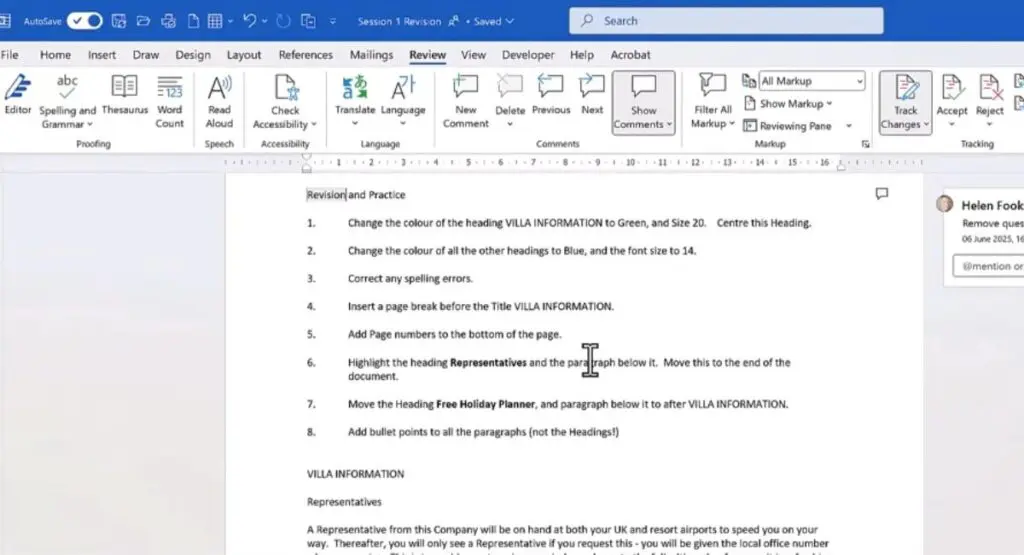
Here is the part most guides skip. Switching the Review tab view to Simple Markup or No Markup makes edits vanish from your screen, and many people assume they are gone. They are not. Microsoft says so directly in its page on hiding markup and comments in Word.
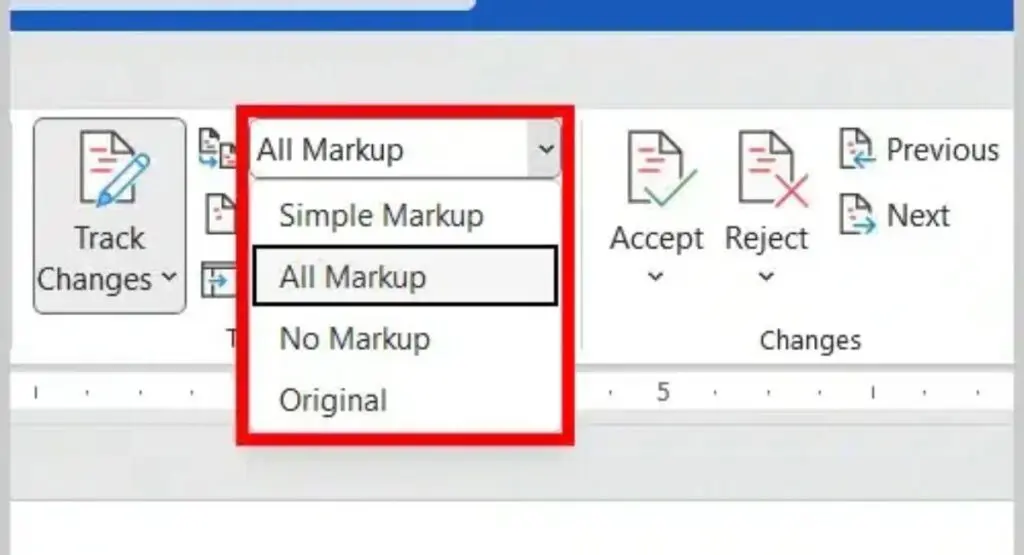
Choosing No Markup only hides tracked changes and comments for now. They show up again the next time someone opens the document. To remove them, you have to accept or reject every change and delete every comment.
A well documented example came in 2004. The SCO Group filed a lawsuit against DaimlerChrysler, and CNET News.com found that the Word file still held earlier tracked edits.
According to a March 2004 report from Out-Law at Pinsent Masons, Bank of America was the named defendant in the draft until February 18. A display setting was all that hid that draft.
Where Hidden Content Lives and How to Spot It
Different kinds of hidden content need different checks.
| Hidden Content | How It Gets There | Where to Look |
|---|---|---|
| Tracked changes and comments | Editing with Track Changes on | Review tab, set the view to All Markup |
| Author and editor names | Your Office user name, saved automatically | File > Info, the Related People area |
| Hidden text | Font set to Hidden, often in templates | Home tab, the Show/Hide ¶ button |
| Cropped parts of pictures | Cropping keeps the full image by default | Picture Format > Compress Pictures |
| White or covered text | Text colored to match the page or placed under a shape | Select all text with Ctrl + A and look for highlights |
Why Text You Cannot See Sometimes Prints
Picture a résumé built on top of an older résumé. It looks clean on screen, but the PDF or the printed copy shows lines that should not be there.
A Word user described that exact problem in a Microsoft Q&A thread about overwritten text that prints, and the fix there was to copy the section into a blank document, find the stray text, and delete it.
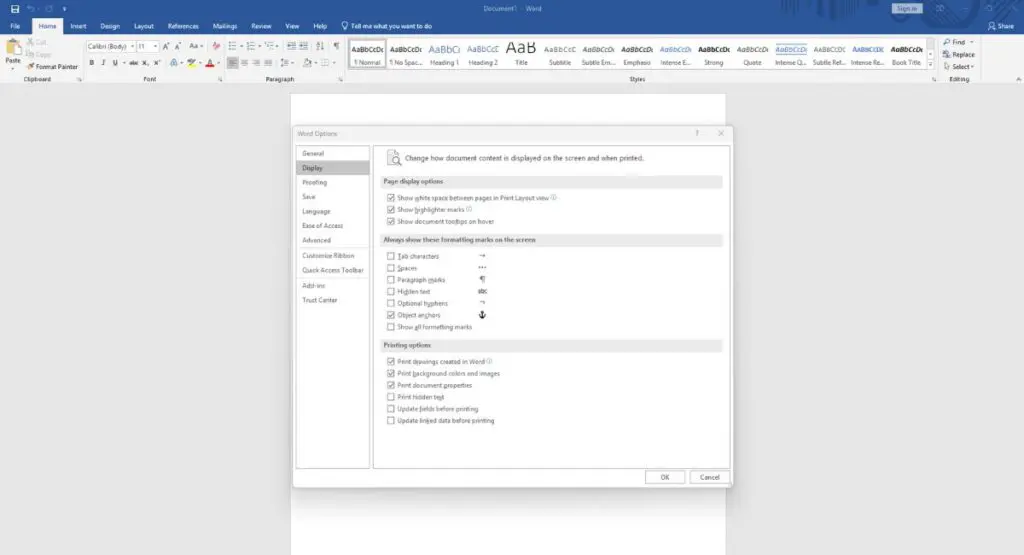
Hidden text is one common cause. Word has two separate switches for it, and they sit together under File > Options > Display, as Microsoft explains in its list of Word display options. One controls whether hidden text shows on your screen with a dotted underline. The other, Print hidden text, controls whether it lands on paper.
You have not broken anything yet. Turn on the screen option, look for dotted underlines, and delete what you find instead of hiding it again.
Not every printer problem starts in Word. HP Instant Ink cartridges can also stop after a subscription ends, even if the cartridges still contain ink.
The Check I Recommend Before You Send Anything
Before you touch anything else, save a copy of the document and work on the copy.
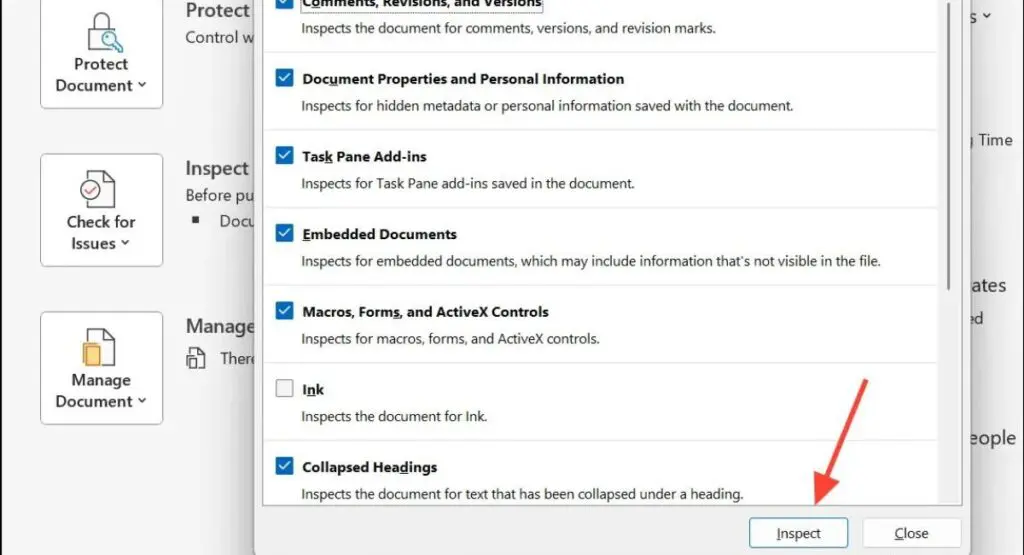
Microsoft warns that content removed by its Document Inspector cannot always be restored, so the original is your safety net.
- On the Review tab, set the view to All Markup. Accept or reject every change and delete all comments. You should see no colored edits and no comment balloons.
- Click Show/Hide ¶ on the Home tab and look for dotted underlines. Delete any hidden text you do not want sent.
- On Windows, go to File > Info > Check for Issues > Inspect Document, click Inspect, then Remove All for each category you want cleared. Click Reinspect and you should see green check marks.
- On a Mac, go to Tools > Protect Document and turn on the option to remove personal information from the file on save.
Read the finished copy once more.
When a PDF Is the Better Envelope
If the reader only needs to read, a PDF usually beats a Word file, partly because Word layouts can shift on another computer.
In a Microsoft Q&A thread about formatting that changes after sending, volunteer experts explained that the printer driver on each machine affects the layout, and they recommended PDF when looks matter.
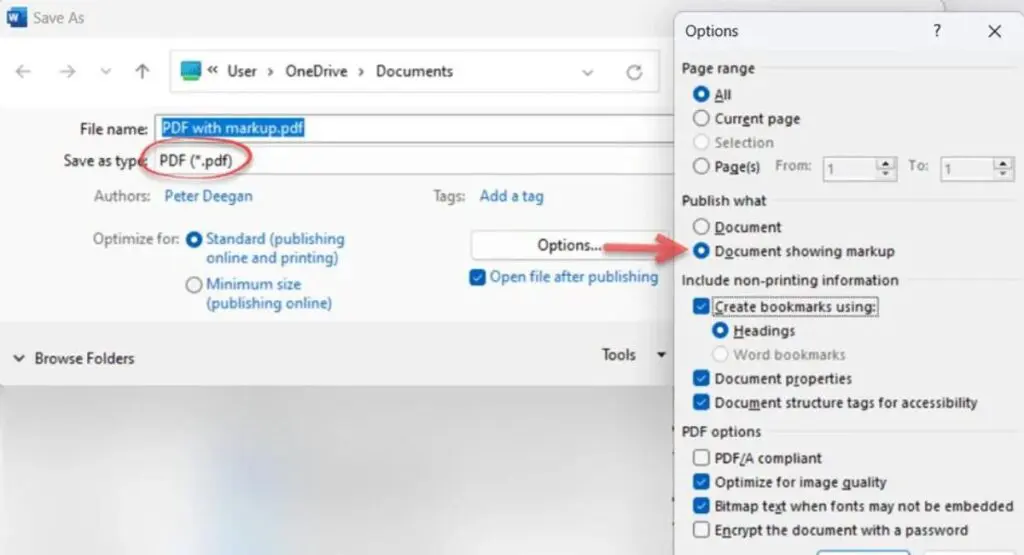
A PDF is not automatically clean, though. Under File > Save a Copy, choose PDF, then More Options > Options. Microsoft describes the choices in its guide to saving Office files as PDF. Set Publish what to Document, not Document showing markup, and clear Document properties if you want your name left out.
The National Security Agency made a related point back in 2005. Its guide on safely publishing sanitized Word reports as PDF warns that black boxes over text do not remove the text underneath. Delete sensitive words in the Word file first.
What to Do Before Your Next Attachment
For anything that matters, such as a résumé, a contract, a complaint letter, or a document built from someone else’s template, run the four checks above on a copy and then send a PDF unless the other person needs to edit it.
For a quick note to a friend, the risk is small and you can skip the routine. The one case where I would never skip it is a file that has been through Track Changes, because those old edits are the most likely thing to surprise the person who opens it.
Open your next attachment in All Markup view before it leaves your outbox.
Frequently Asked Questions
1. Can I See Who Created a Word File Someone Sent Me?
Usually, yes. In Word for Windows, open File > Info and look under Related People for Author and Last Modified By. Those fields are easy to edit, so treat them as a clue, not proof.
2. How Do I Stop My Name From Going Into New Documents?
Word fills in the author field from your Office user name. On Windows, go to File > Options > General and edit the User name and Initials boxes under Personalize your copy of Microsoft Office. Files you already saved keep the old name until you clean them.
3. Does Sending a Link to a OneDrive File Avoid the Problem?
Not completely. A shared link gives people the same document, comments included. Anyone with edit access can usually open the version history and see earlier saved copies.
4. Do Excel and PowerPoint Files Have the Same Issue?
Yes. Document Inspector works in both. Excel files can hold hidden rows, columns, and whole worksheets, and PowerPoint files can carry speaker notes and slides placed off the visible area.
5. Will Antivirus or Email Security Strip Hidden Data for Me?
No. Security tools look for malware, not for your old edits or your name in the properties. The file arrives with everything it had when you attached it.