
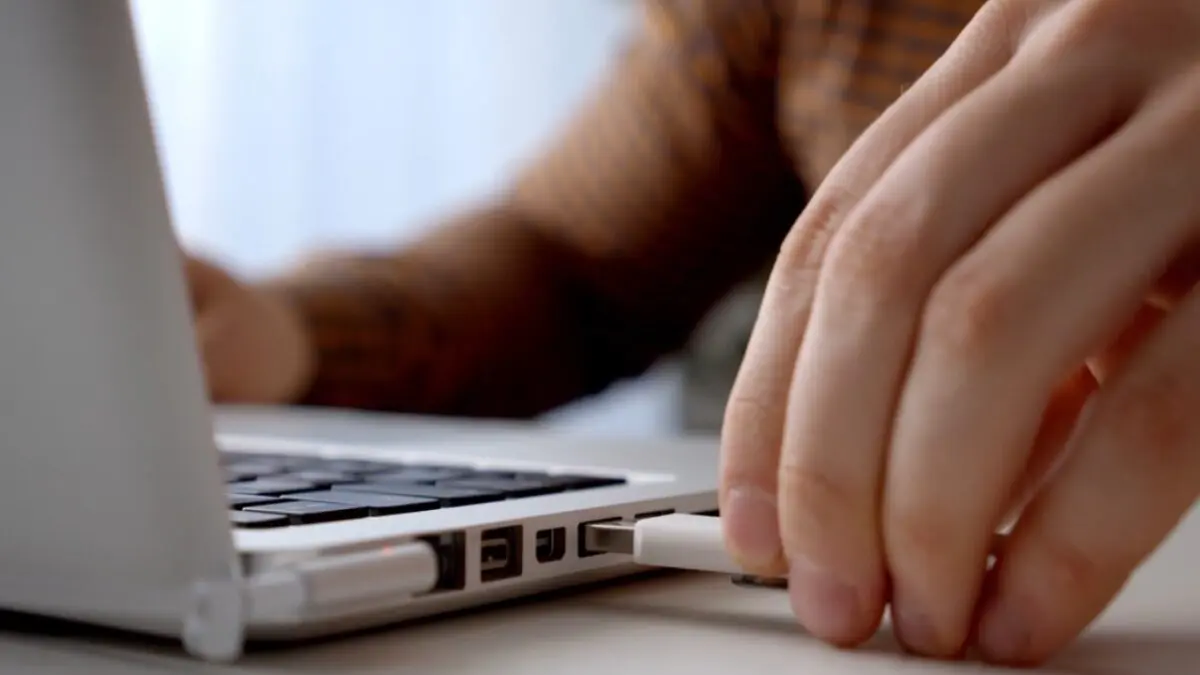
A few years ago, my neighbor Carol knocked on my door holding a flash drive like it had personally betrayed her. She had pulled it out of her laptop while a folder of photos from a school recital was still copying, and half the pictures would not open.
So, do you really need to eject a USB drive? On a Windows PC with default settings, usually not. Microsoft changed the rule back in 2018.
What happened to Carol is the exception the change never covered, and it is the one worth remembering.
In this answer
- What Changed in the Windows 10 October 2018 Update
- Why Most People Did Not Hear About It Until 2019
- Quick Removal and Better Performance Compared
- When I Still Click Eject on a Windows PC
- How to Check the Setting on Your Own Drive
- Macs Still Expect You to Eject
- What I Tell People Now
- Frequently Asked Questions
What Changed in the Windows 10 October 2018 Update
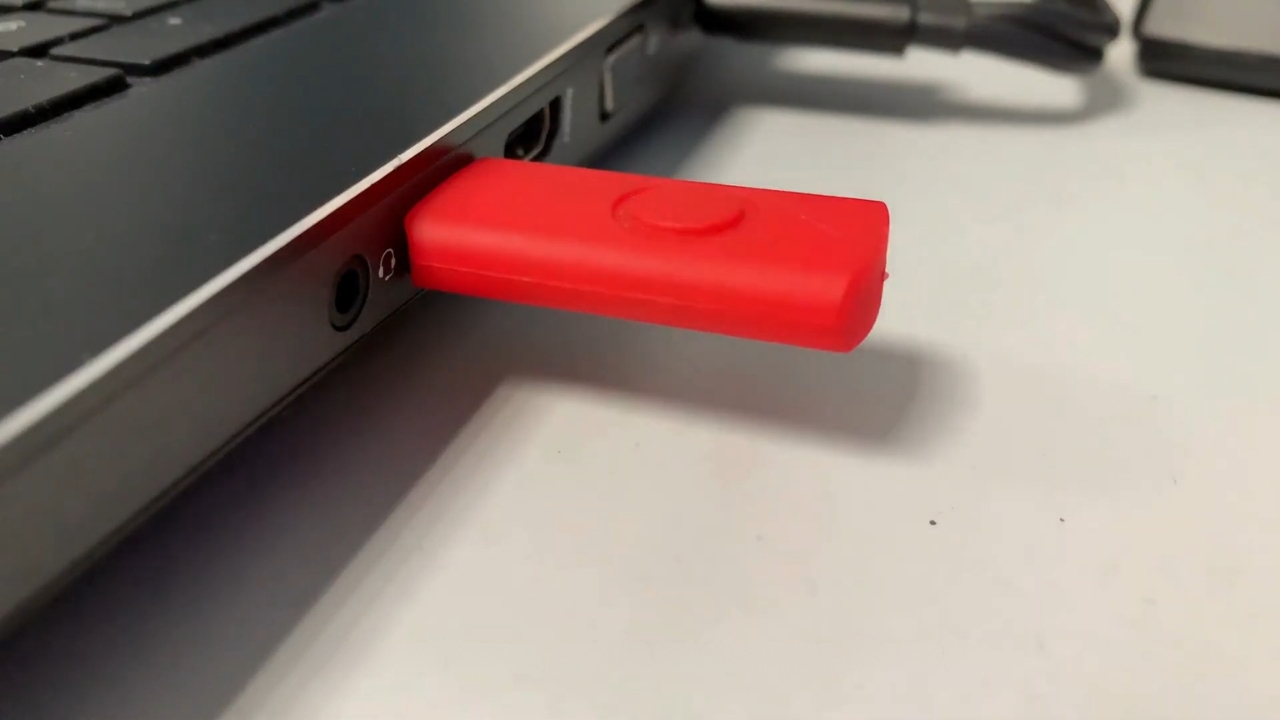
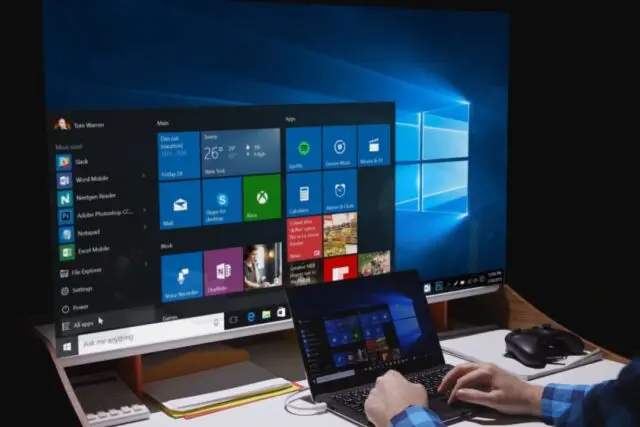
Starting with Windows 10 version 1809, better known as the October 2018 Update, Windows sets external drives to a policy called Quick removal by default.
Older versions used a policy called Better performance, which expected you to use Safely Remove Hardware each time.
The difference comes down to timing. Under Quick removal, Windows writes data to the drive right away instead of holding some back in memory. According to the Microsoft guide to removal policies for external storage, a drive set to Quick removal can be unplugged at any time without the eject step.
Write caching means Windows holds data in memory for a moment and writes it to the drive later in larger, more efficient batches. It speeds things up, but anything still waiting in memory is lost if the drive disappears first.
Quick removal switches that caching off, which is why pulling the plug stopped being risky.
If you’re still on Windows 10, there’s another update worth checking. Microsoft extended Windows 10 security updates through 2027 for eligible home PCs, but you need to be enrolled in the ESU program to receive them.
Why Most People Did Not Hear About It Until 2019
The rollout was messy. Microsoft released version 1809 on October 2, 2018, then halted it within days after users reported that the upgrade itself was deleting personal files, as Pureinfotech reported when the update was pulled. Distribution resumed that November.
View this post on Instagram
The removal change got little attention until April 2019, when Microsoft published a support note about it and tech outlets picked up the story, including a NewsBytes piece republished by Yahoo Finance.
I remember reading it at my kitchen table and laughing, because I had spent about ten years telling relatives to always click eject.
Did you know? The same update that made yanking a USB drive safer was itself paused for losing files. Microsoft fixed that bug before sending the update out again.
Quick Removal and Better Performance Compared
Windows still offers both policies, and you can switch any external drive between them. Here is how they differ in daily use.
| Setting | Write caching | Eject first? | Best fit |
| Quick removal | Off | No, once copying ends | Flash drives that travel between computers |
| Better performance | On | Yes, every time | Drives that stay plugged into one PC |
The trade is speed for convenience. Microsoft notes that Quick removal can slow performance because Windows cannot cache writes.
In my experience, the gap shows up mostly when copying big batches of files, like a whole summer of family videos, and barely at all with a few documents. If you pick Better performance, Microsoft also recommends turning on write caching for that drive in the same window.
When I Still Click Eject on a Windows PC
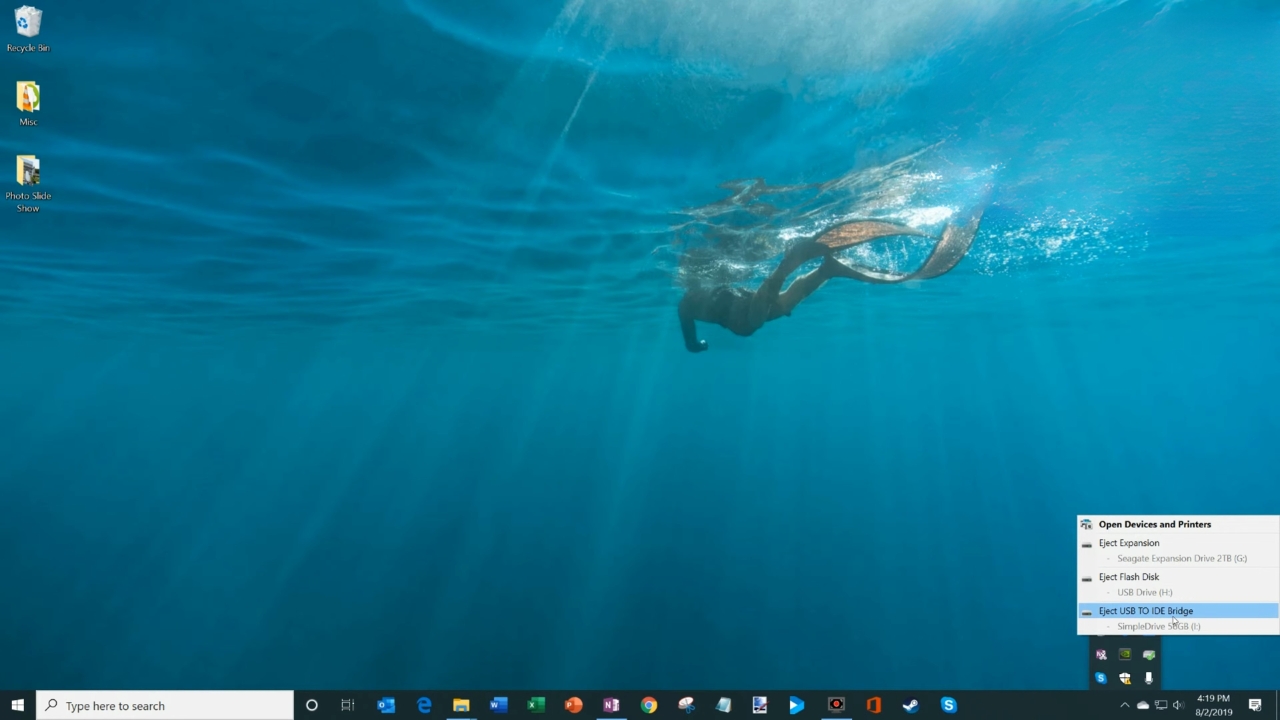
Quick removal protects you from data Windows was holding back. It cannot protect data still on the move, which is what bit Carol.
Here are the situations where I still take two seconds to eject.
- A copy or move is still running, even if the progress window is hidden behind another app.
- A file from the drive is open in Word, Excel, Photoshop, or a video editor.
- Someone, maybe you, switched the drive to Better performance.
- The drive holds your only copy of something you cannot replace, which is a good reason to set up a simple backup routine for your Windows PC.
Ejecting, which Microsoft walks through in its guide to safely removing hardware in Windows, also works as a quick test. If Windows refuses because the device is in use, something still has hold of it, and you caught it before losing work.
How to Check the Setting on Your Own Drive
If a relative, a previous owner, or an old IT department set up your PC, your drive might not be on the default. Checking takes about a minute.
- Plug in the drive and note its letter in File Explorer, such as D or E.
- Right-click the Start button and open Disk Management.
- In the lower half of the window, right-click the disk name on the left of the row that matches your drive, then choose Properties.
- Open the Policies tab. If it is missing, open the Hardware tab, pick the drive, select Properties, and look there.
- See which option is selected, and change it if you want.
The setting lives on the computer, not on the drive. Microsoft says your choice stays in place when you reconnect that drive to the same port, so a flash drive can behave differently on your home PC and your work laptop.
Macs Still Expect You to Eject
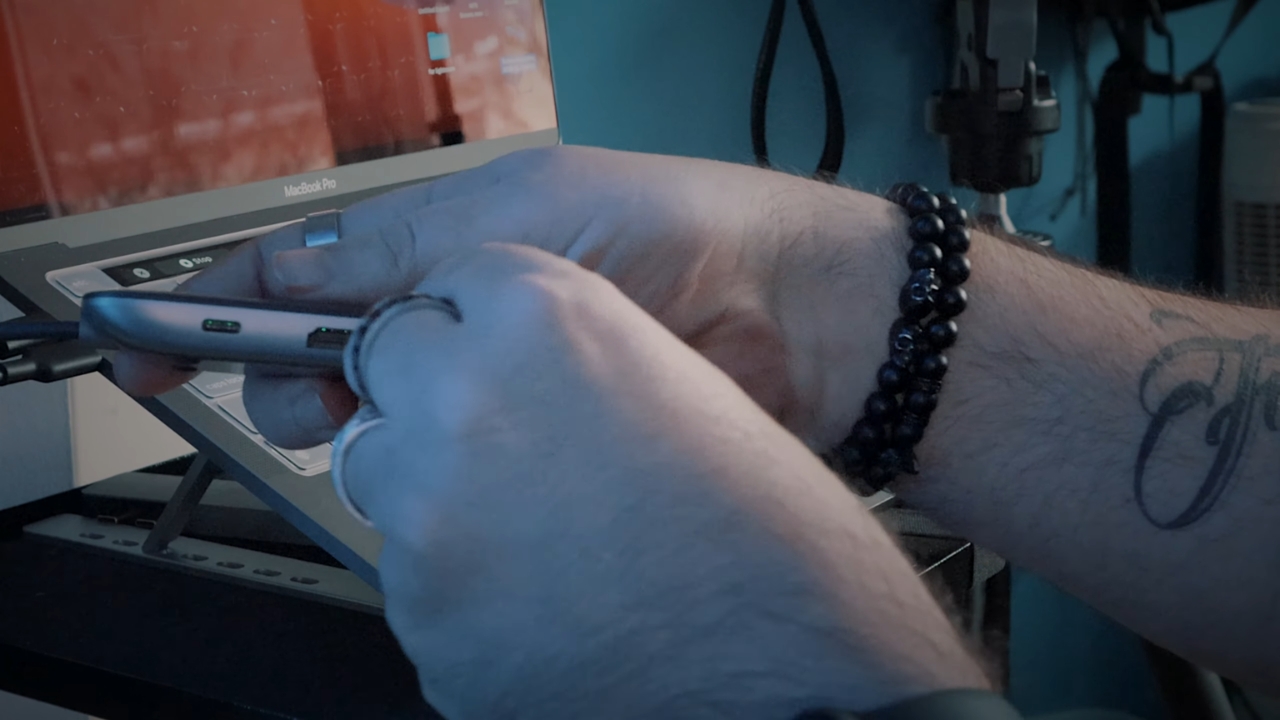
Apple never made a similar switch. Pull a drive from a Mac without ejecting, and macOS shows a Disk Not Ejected Properly warning. As How-To Geek explains about that Mac alert, ejecting gives the system time to finish pending reads and writes, much like Windows did before 2018.
I learned to respect that warning on my own desk. My MacBook backs up to an external drive, and one night I knocked the cable loose with my elbow halfway through a backup. Nothing was lost, but I spent the evening checking the drive instead of watching the game.
Ejecting on a Mac is quick. Apple lists the options in its guide to external storage on Mac, including the Eject button in the Finder sidebar. If the warning keeps appearing when nobody touched anything, learn the signs your external hard drive is starting to fail.
What I Tell People Now
Carol still uses that flash drive with her Windows laptop, and these days she pulls it out without ejecting most of the time. The difference is that she waits until the copy window closes and every file from the drive is saved and closed.
When she uses the old MacBook her son left behind, she ejects every time. If your drive is on Quick removal and you follow the same habit, skipping the eject step on Windows is fine.
On a Mac, or with a drive that holds your only backup, keep clicking eject. Two seconds is a small price for photos you cannot take again.
I also recommend a plan for who can access your online accounts and family photos if something happens to you.
Frequently Asked Questions
1. Does Windows 11 Also Use Quick Removal by Default?
Yes. Microsoft lists Windows 11 alongside Windows 10 in its documentation for the removal policy, and the default for external drives is the same.
You can still change any drive to Better performance through Disk Management.
2. Can Pulling Out a Flash Drive Damage the Drive Itself?
A flash drive has no moving parts, so the realistic risk is to the files and the file system, not the hardware. Spinning external hard drives are different. A proper eject lets them finish writing and power down cleanly.
3. What Should I Do If Files Will Not Open After I Unplugged a Drive?
Copy anything that still opens to your computer first. Then right-click the drive in File Explorer, choose Properties, open the Tools tab, and select Check under Error checking.
4. Is It Safe to Unplug a Drive After Shutting Down the Computer?
Yes. A full shutdown finishes all pending writes and closes the drive on both Windows and Mac. Sleep is a different state, so eject first if you plan to remove a drive from a sleeping laptop.
5. Do I Need to Eject a USB Drive From a TV or Car Stereo?
Those devices do not follow Windows or Mac rules, and most offer no eject option. Wait until playback or recording stops, and turn the device off before removing the drive when you can.